
The Ultimate Checklist for Preparing Your Home Office for Remote Work
Remote Work Secrets - Edition #45
What's Inside:
Why your kitchen table is costing you the interview. A cluttered background says more than your resume does.
The home office checklist most people skip until it's too late. Ergonomics first, aesthetics never.
Why your Wi-Fi might be sabotaging your next big call. Reliable internet is an integral part of your infrastructure.
This Week's Remote Roles. Real remote roles for Senior Professionals.
At 8:57 a.m., an experienced marketing leader joined a final-round video interview from her kitchen table. The camera showed a cluttered counter, the Wi-Fi dropped twice, and she spent the call leaning toward a laptop microphone that made her sound distant. Her experience was excellent, but her setup told a different story.
Within the next year, a basic “work-from-home corner” will no longer be enough for serious remote professionals. As employers become more selective about remote hires, they are looking for people who can operate independently, communicate clearly, and create a reliable remote work environment. Your home office does not need to look expensive. It does need to prove that you can do focused, professional work without constant friction.
That is the real purpose of preparing a home office for remote work: not to build a Pinterest-perfect desk, but to remove the daily obstacles that drain energy, damage concentration, and undermine your credibility on screen.
For experienced professionals moving from office-based careers into remote roles, this is especially important. A remote employer is not merely hiring your technical capability; they are hiring your ability to deliver outcomes from wherever you are. The right environment makes that capability visible.
Start with the job you want, not the gadgets you want
The biggest mistake people make is buying equipment before defining how they will work. A customer success manager who spends six hours a day on video calls needs a different setup from a financial analyst handling large spreadsheets, or a writer who needs long stretches of undisturbed concentration.
Before spending anything, answer these questions:
How many hours per day will you be at your desk?
Will you take frequent video calls, lead presentations, or record content?
Do you need a second screen for documents, dashboards, design work, or data?
Do you handle confidential customer, financial, or company information?
Is your home noisy at the times you need to work?
Will the space also be used by a partner, child, or housemate?
Do you need a setup that can travel with you or remain fixed in one place?
Remote work is not one lifestyle. It is a collection of work patterns. Understanding common remote work terms can also help you interpret job descriptions accurately: “remote-first,” “distributed,” “async,” and “work from anywhere” can demand very different working arrangements.
1. Choose a location that protects focus
A dedicated room is useful, but it is not the only route to a professional setup. Separation should be the standard, not square footage. You need a place where your work can begin and end deliberately.
Check the space for:
A desk-height surface that is stable and deep enough for your screen and keyboard
Access to a power outlet without running cables across walkways
A door, divider, curtain, or clear visual boundary where possible
Enough room to sit with your chair tucked in and move comfortably
A background suitable for video calls
Low foot traffic during your core work hours
Natural light that does not create glare on your screen
A practical alternative location for unexpected noise, construction, or family disruption
The kitchen table can work temporarily. It is a poor long-term default because it forces you to pack away your work, invites interruption, and blurs the boundary between recovery time and work time. That blurring is one reason many people struggle with the less glamorous side of remote work: fatigue, overwork, and isolation. Remote flexibility only works when it is supported by intentional habits, as this remote work wellbeing reality check makes clear.
Real-world use case: If you live in a one-bedroom flat, claim one end of a room with a compact desk, an adjustable lamp, a cable tray, and a folding screen behind you. You do not need a separate office. You need a consistent “work mode” that your household - and your brain - can recognise.
2. Get ergonomics right before upgrading aesthetics
A stylish desk chair that does not fit your body is still a bad chair. Repetitive strain, neck pain, headaches, and lower-back discomfort often begin with small mismatches repeated for eight hours a day.
Set up your body first:
Sit with feet flat on the floor or on a footrest
Keep knees roughly level with, or slightly below, your hips
Adjust chair height so elbows rest near a 90-degree angle when typing
Keep shoulders relaxed rather than lifted toward your ears
Position your keyboard so you are not reaching forward
Place the top of your main screen at, or slightly below, eye level
Keep the monitor about an arm’s length away - usually around 50 to 75 cm for most people
Use a laptop stand and separate keyboard and mouse if a laptop is your primary device
Stand and move regularly instead of trying to buy your way out of a sedentary day
The best home office equipment is often the equipment that prevents you from noticing your body during the workday. That means a supportive adjustable chair, a monitor at the right height, and an external keyboard and mouse are generally more valuable than decorative accessories.
A sit-stand desk can be helpful, but it is not mandatory. Standing all day is no more sensible than sitting all day. The goal is position change. Try a simple rhythm: work seated for 45 to 60 minutes, stand or walk for two to five minutes, then return.
Do not buy a monitor before measuring your desk. A large screen on a shallow desk can force you to sit too close, strain your eyes, and crowd out your keyboard. More screen is not automatically better; correct distance and usable space matter more.
For a broader buying framework, use Remote Rebellion’s guide to remote work essentials alongside this checklist.
3. Build a video-call setup that makes you clear and credible
Video calls are now part of the operating system of remote work. You do not need a studio. But you should stop accepting bad sound, poor lighting, and an unsteady camera as normal.
Your goal is simple: people should be able to see and hear you without effort.
Video-call checklist:
Raise your camera to eye level using a laptop stand, monitor mount, or stable riser
Face a window or light source rather than sitting with it behind you
Use a front-facing lamp if natural light is inconsistent
Test your background in the actual video platform you use
Use a headset or dedicated USB microphone in noisy homes
Keep a wired headset available as a backup
Turn off visual and audio notifications before important calls
Practise screen sharing and know where sensitive tabs or files are stored
A modest headset with a boom mic can make a bigger difference than a premium webcam. Sound quality determines whether colleagues can follow you. If people repeatedly ask you to repeat yourself, your communication is being judged as unclear even when your thinking is not.
Lighting is the second priority. Avoid placing a bright window behind you. It turns your face into a silhouette and makes even a high-quality camera look poor. A window in front of you, softened by a blind if necessary, is usually ideal. If that is impossible, place a diffused lamp behind your camera.
Real-world use case: A project manager running client calls from a shared household should keep a “meeting kit” in one drawer: headphones, charger, spare cable, small light, notepad, and hotspot details. The point is not paranoia. It is eliminating the five-minute scramble before a high-stakes call.
4. Treat internet reliability as essential infrastructure
Remote work is impossible to sustain on unreliable connectivity. Yet many professionals only test their Wi-Fi when a video call fails. By then, the problem is visible to everyone.
A practical baseline for a professional remote setup is not merely internet that works “most of the time.” It is connectivity that can cope with video calls, cloud tools, uploads, and other people using the same network.
Test and improve your connection:
Run speed tests at the time of day you normally work
Test both download and upload speed; video calls rely heavily on upload stability
Join a video call while another household device streams content
Use an Ethernet cable where practical, especially for important calls
Place your router in an open, central location rather than inside a cabinet
Keep a mobile hotspot or tethering plan for emergencies
Learn how to restart your router and where to find your internet provider’s outage information
Schedule critical interviews and presentations where your connection is strongest
There is no universal bandwidth number because household use varies. But a connection that regularly freezes during calls is not good enough for a role built around collaboration. A reliable wired connection and a backup hotspot can save an interview, a client presentation, or a difficult conversation with your manager.
5. Protect company data like a professional, not a hobbyist
Remote work moves sensitive information into homes, cafés, coworking spaces, and hotel rooms. That makes basic security non-negotiable.
At minimum:
Use a strong, unique password for every work account
Turn on multi-factor authentication wherever available
Update your operating system, browser, and security software promptly
Lock your screen every time you leave your desk
Avoid sharing work devices with other household members
Use a password manager rather than saving passwords in notes or browsers without protection
Store confidential documents in approved company tools, not personal drives
Use a privacy screen if you work in shared spaces
Ask your employer about VPN, device management, and data-handling requirements
Do not assume security is solely an IT department problem. If you are interviewing for a remote position, showing that you understand privacy and data protection signals maturity - particularly in finance, healthcare, legal, HR, and client-facing work.
6. Design the desk for the work you actually do
A remote productivity setup should reduce micro-decisions. If you must hunt for a charger, notebook, cable, or document every morning, you start each day with avoidable friction.
Create desk zones:
Focus zone: computer, monitor, keyboard, mouse, notebook
Call zone: camera, microphone or headset, light, water
Reference zone: printed notes, second screen, calculator, project documents
Reset zone: tray or drawer for items that do not belong on the desk
Keep only daily-use tools within arm’s reach. Everything else should be stored. Clutter is not a moral failing, but it is visual noise - and visual noise competes for attention.
This is especially important for professionals transitioning from an office where facilities teams handled the practical details. In remote work, you become your own workplace operations manager. That responsibility is manageable once you build systems rather than relying on willpower.
7. Make the environment support energy, not just output
The old office model glorified visible busyness. Remote work gives you a chance to reject that model - but only if you deliberately protect your energy.
Consider these home office setup tips:
Keep water within reach to reduce unnecessary interruptions
Set your room temperature and clothing for focus, not appearances
Use noise-cancelling headphones or neutral background sound when appropriate
Put your phone out of reach during deep work blocks
Take lunch away from the desk when possible
Build a short shutdown ritual: close tabs, list tomorrow’s priorities, put away work items
Add one restorative element, such as a plant, artwork, or daylight exposure, without turning the desk into a distraction zone
Your environment affects your work relationships, too. When you are overloaded, uncomfortable, or constantly interrupted, you are more likely to send abrupt messages, delay replies, or arrive to calls already frustrated. Strong remote teams depend on deliberate trust and communication, not forced office proximity. Read more about aligning work relationships with remote values.
8. Plan for flexibility without romanticising it
Location independence is valuable. It is not the same as being productive from every location.
A café can be useful for a change of scene; it is rarely ideal for confidential conversations or concentrated work. A coworking space can offer reliable Wi-Fi, quiet meeting rooms, and social contact - but it may add commute time and cost. If you work while travelling, prepare a compact mobile setup: laptop stand, headphones, universal charger, portable mouse, backup battery, and hotspot.
For professionals working across Europe, this guide to remote coworking spaces in Europe can help you evaluate options. The best place to work is not a photogenic beach café. It is the location where you can deliver consistently, protect confidential information, and finish the day with enough energy to have a life outside work.
That kind of distinction matters. Remote work should expand your choices, not pressure you to perform a nomadic lifestyle that does not suit you.
A home office can support your career transition
Your home office is not a substitute for a strong remote job-search strategy. A flawless desk will not compensate for generic applications, weak positioning, or a poorly articulated career story.
But it does make you more ready to seize opportunities. When an interview invitation arrives, you can say yes without worrying about noise, lighting, internet, or whether your laptop battery will survive. When you start a new role, you can focus on building relationships and producing results rather than spending the first month battling preventable setup problems.
If you are currently asking an employer to make your role remote, your work environment can strengthen the case. The most persuasive request is not “I would prefer to stay home.” It is “Here is how I will maintain communication, availability, security, and measurable performance.” Remote Rebellion’s guidance on how to position yourself for remote work explains how to make that business case.
And if a company offers a home-office stipend, do not burn it on novelty tech. Prioritise the items that improve health, communication, and reliability. If equipment or benefits form part of a broader offer, use these principles alongside this remote salary negotiation guide.
What a High-Performing Remote Setup Actually Requires
A professional home office is defined by reliability, comfort, clear communication, and security - not by a large room or expensive décor.
Start with your work pattern. Video-heavy, analytical, creative, and travel-based roles require different tools and space decisions.
Prioritise ergonomics before aesthetics: chair adjustment, monitor height, keyboard position, and regular movement prevent avoidable strain.
Invest first in the essentials that affect other people: stable internet, good audio, usable lighting, and a camera at eye level.
Create a backup plan for predictable failures, including internet outages, noise, low battery, and unexpected household disruption.
Treat your environment as part of your career strategy. It helps you interview confidently, onboard faster, and demonstrate the independent working habits remote employers value.
Sustainable remote work includes boundaries. A desk that is always “on” can turn flexibility into burnout.
A thoughtful setup can also reduce commuting and unnecessary energy use, though the environmental impact of remote work depends on home energy, travel choices, and equipment habits. Remote Rebellion explores those trade-offs in its guide to remote work and environmental impact.
Common Questions About Creating a Remote Workspace
Do I need a separate room to work remotely effectively?
No. A separate room is helpful but not essential. You need a stable workstation, low interruption during key work periods, and a clear boundary between work and personal life. A desk in a bedroom or living area can work well when it is deliberately organised and packed down at the end of the day if necessary.
What are the first three items I should buy for a home office?
Start with an adjustable supportive chair, a laptop stand or monitor that raises your screen to eye level, and an external keyboard and mouse. If you spend many hours on calls, add a reliable headset with a microphone next.
Is one laptop screen enough for remote work?
It can be, especially for writing, communications, and lighter project work. A second screen is usually worthwhile for spreadsheets, design, coding, research, project coordination, and roles that require comparing multiple documents. Test your workflow before buying a large monitor.
How can I make video calls look more professional on a small budget?
Raise the camera to eye level, face a window or inexpensive front-facing lamp, reduce background clutter, and use headphones with a microphone. Clear audio and front lighting matter more than an expensive webcam.
What should I do if my home is too noisy for remote work?
Use a headset with noise reduction, schedule focused tasks during quieter hours, communicate call times with household members, and identify an alternative location for high-stakes meetings. A coworking space or bookable meeting room can be a sensible backup, not a daily requirement.
Turn This Checklist Into a Working Setup This Week
Do not try to transform your workspace in one expensive weekend. Follow this step-by-step process instead.
Audit your current working day. For three days, note every interruption, discomfort, technical issue, and task that feels harder than it should. Look for patterns rather than isolated annoyances.
Define your highest-stakes use case. Choose the moment when failure would matter most: an interview, a client presentation, a leadership meeting, or four hours of spreadsheet analysis. Build for that first.
Measure your available space. Record desk width, desk depth, outlet locations, window direction, and the distance between your chair and screen. This prevents wasted purchases.
Fix your ergonomics using what you own. Raise your laptop with sturdy books or a stand, connect an external keyboard and mouse, adjust your chair, and add a footrest if your feet do not reach the floor comfortably.
Test your communication quality. Make a practice video call at the same time you normally work. Review the lighting, sound, camera angle, connection stability, and background from the other person’s perspective.
Create a failure plan. Write down your backup internet option, charging solution, alternate call location, and the contact details for your internet provider. Keep essential cables together.
Buy upgrades in priority order. Spend first on the chair, screen positioning, audio, and internet reliability. Only then consider a larger desk, decorative upgrades, or premium accessories.
Set operating boundaries. Decide your start time, shutdown time, break rhythm, and where work devices will go after hours. Flexibility without boundaries is simply work that expands to fill your life.
Use your setup in a real remote-job scenario. Record a mock interview answer, run a virtual coffee chat, or present a short project update on video. The goal is to identify friction before an employer sees it.
Once your workspace is dependable, focus on the larger transition: how you present your experience, find remote-first employers, and reach the people making hiring decisions. Remote Rebellion’s Remote Job Academy is designed for experienced professionals who want strategic positioning and more direct access to remote opportunities, while the Remote Work Secrets Newsletter delivers practical hiring insights and current listings.
This Week's Remote Roles
🎯Fully Remote Jobs (No "Fake Remote" Here):
Want to see the other 150+ roles? Check them out through the button below.
Final Thoughts
You can have the best desk, the best lighting, the perfect camera height, and it still won't matter if you're applying into a black hole.
A great home office proves you CAN do the job well. It doesn't get you the interview in the first place. That bit still comes down to finding companies that are actually hiring for remote roles, not just tolerating them, and getting in front of the right person with the right pitch.
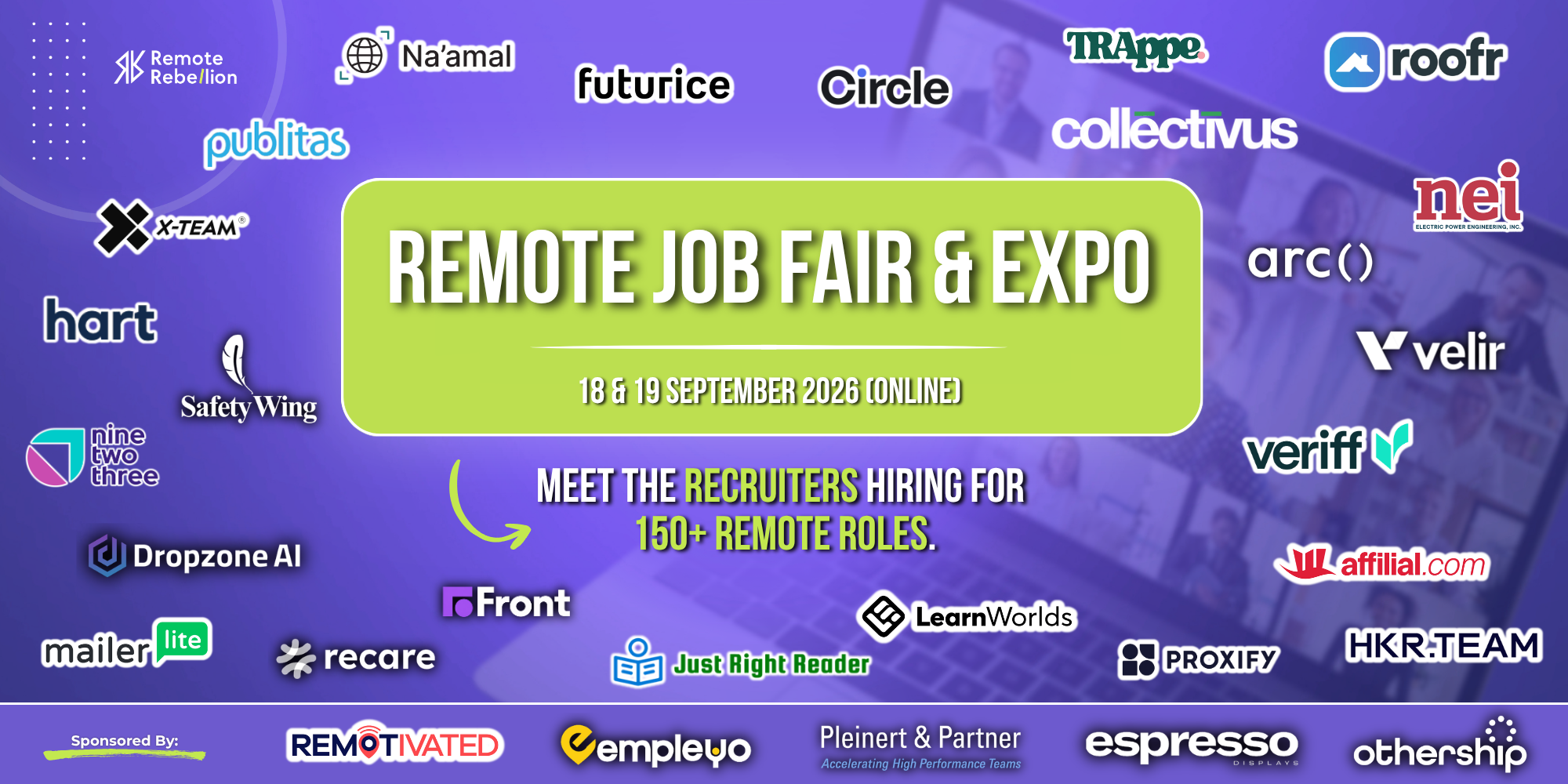
That's exactly why we're running our remote job fair in September. We've got 25 companies on board, all hiring for remote positions, with over 150 roles between them. No submitting your resume into a system and hoping. No guessing whether "remote-friendly" secretly means three days in the office. Real companies, real openings, real conversations.
So sort your setup this week. Then bring it to the job fair and actually use it for something.
Stay Rebellious,
Michelle & The RR Team
This week's newsletter is sponsored by Remotivated, the trust layer for remote work.
"Remote" means something different at every company, and most job boards take that label at face value. Remotivated doesn't. Every employer is hand-screened and earns a REMOTE Score based on real policies and genuinely anonymous employee reviews, and jobs sync straight from company hiring systems, so they land in minutes instead of hours.
Core features are free, always. Pro is just for anyone chasing an extra edge.
